
Script Source
While usually the report will retrieve data from your application automatically, you can also provide greater control of this by providing what's called a Script Source.
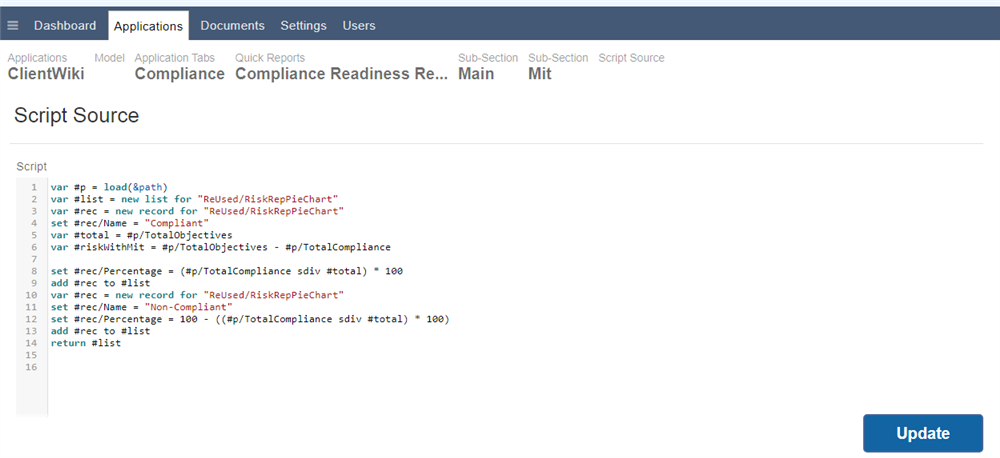
A Script Source is a script defined in a section that ultimately returns the data that will be used in the report. That script can use any means it needs in order to create, retrieve, aggregate or otherwise process the data before it is displayed.
Script Source scripts will load or create a list of records of a form that is pre-defined in your application.
To add your script source, go to the Quick Report, then click on the section where you wish to programmatically source the data. Then click on the hamburger menu (left side of the section) and select Script Source. You will have to click "+" to add the entry.
When creating a script source, you can either point the Root field to an existing form in your system that reflects the data that will be displayed, or if you don't have a form in the system that matches the structure of the data, then you can create a hidden form at the top-level for this. Alternatively you can leave the Root field empty, add no fields to the section, and it will just display all the fields in the list that you return (this, however, gives you less options for formatting).
The only requirement for a script source is that it returns the data that is used in that report section. For example if your report section points to a tab called MyDataList, and you want it to only show data where the Date field is unset, then the script source could be as simple as:
return load(&path[Date = NullDate()])
This is a very simple example, but there is no limit to how complex your script source can be.
Adding a Hidden Form
If you decide to add a hidden form at the top level, it's worth noting that the best practice is to put such forms as sub-forms of a a top-level form called Report Types that is hidden which makes it easier to organize and tidier.
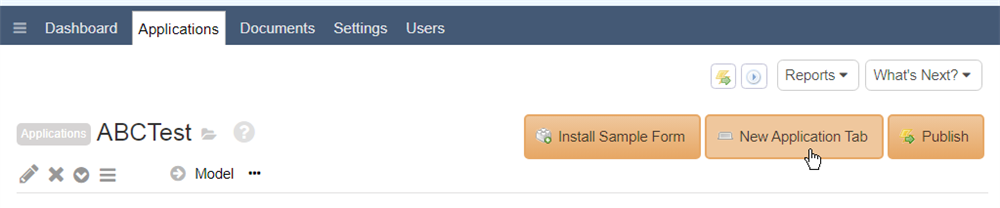
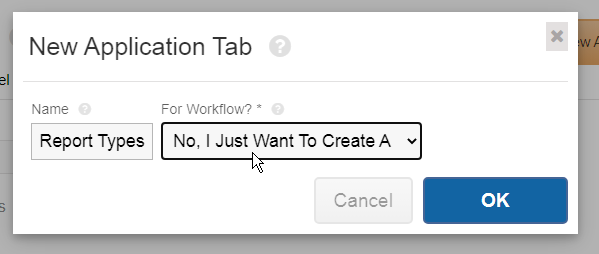
To do this, add a new "Application Tab" called Report Types (set For Workflow = No):
Then edit the form and set Hide=Yes to make it hidden. This means it no longer shows up as a tab, but instead is used to store form templates.
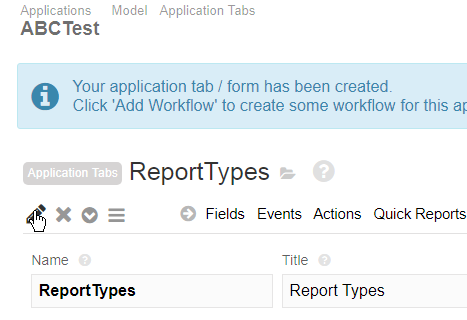
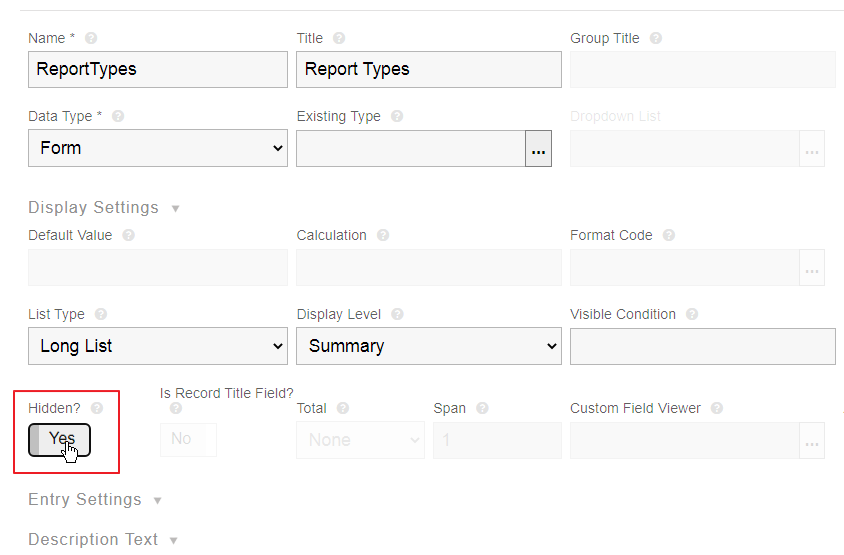
Once you click Update so that the hidden "Report Types" form is created, you can now add your report output form underneath that. This will just be a regular form but with the fields that reflect the fields you want to show in your report level, including any calculated fields. To do that click Add Sub-Field (under the new Report Types form), and select Form as the type:
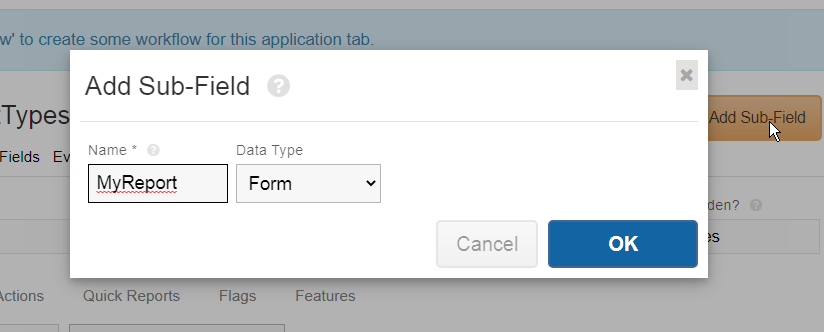
...then select the new form:
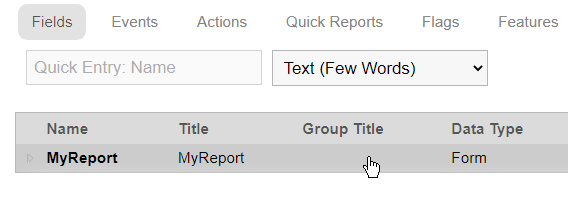
...and now add sub-fields for each field in the report section that you want to set:
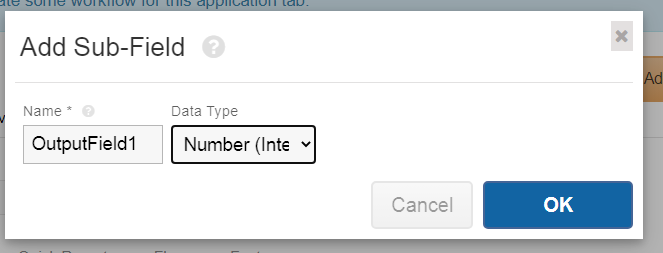
Now you have the form defined, you do two things:
1. In the report section you were created, set the Root field to be the form that defines the output structure you just created (eg. MyReport)
2. Then click the drilldown menu (Hamburger icon) and select the Script Source entry. Click the + to add a script.
The script is free to do any processing it likes, however it must return a list of the data at the end of the script. It will be passed &path as the path of the parent form of the report, which may just be the same as &root if it's not a sub-level.
For example:
var #list = new list for "ReportTypes/MyReport"
loop through 100 as #num
    var #rec = new record for "ReportTypes/MyReport"
    set #rec/OutputField1 = #num
    add #rec to #list
end loop
return #list
If you want to use data from another tab but just add some calculated fields before reporting on it, then you can load that data first, copy fields into the hidden report type you created, and add any calculations.
A Script Source can return hierarchical data (eg. records that contain lists, sub-records and so on). Any sub-section of the report can point to the sub-list root type, and will automatically populate from the data provided by the Script Source.